Consider the Workbench GUI as the NiagaraAX “super browser,” combined with other familiar Windows-like applications (e.g. Windows Explorer).
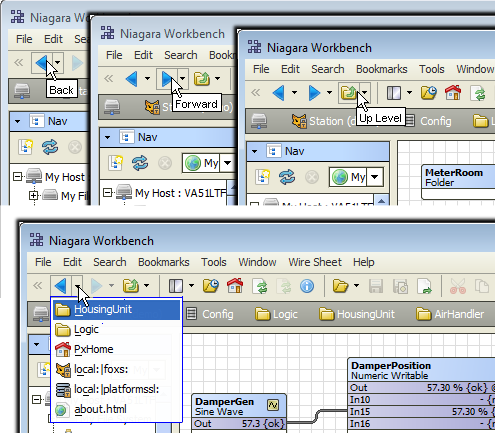
On the toolbar, use the and buttons to retrace or advance your steps. Both of these buttons offer a “visited” drop-down menu.
Also, an button is available when you are at some child level, say under a station’s Config node (also with its own drop-down menu).
Instead of a normal “text-only” URL address bar, Workbench has a graphical .
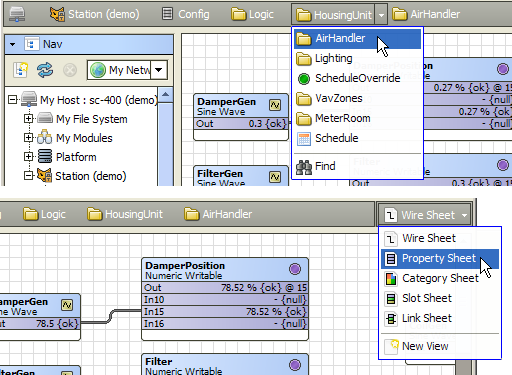
As shown above, the locator bar displays not only the full path of the item in view, but also features a drop-down menu (at every level) that lists immediate child items.
The right-side of the locator bar is the , another drop-down menu that lists all available views for the item currently shown in the view pane.
Right-click menus are woven throughout the Workbench interface, both in the sidebar (Nav tree, by default) as well as in main views.
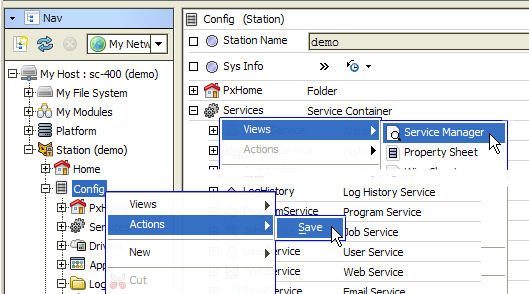
 Often, multiple ways exist to perform the same operations, either working in the sidebar (e.g. Tree), main view, or from
the menu bar or toolbar. For example, this document provides mostly “right-click instructions”.
Often, multiple ways exist to perform the same operations, either working in the sidebar (e.g. Tree), main view, or from
the menu bar or toolbar. For example, this document provides mostly “right-click instructions”.