If you exited Workbench without first stopping the station, and you have not since rebooted your computer (or stopped/restarted
the Niagara platform daemon), the station remains running.
If you exited Workbench without first stopping the station, and you have not since rebooted your computer (or stopped/restarted
the Niagara platform daemon), the station remains running.
-
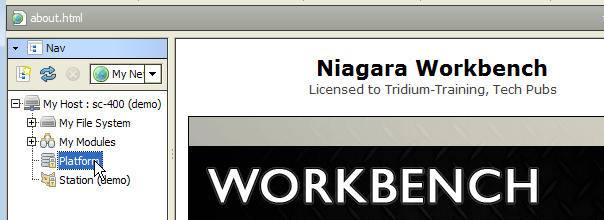
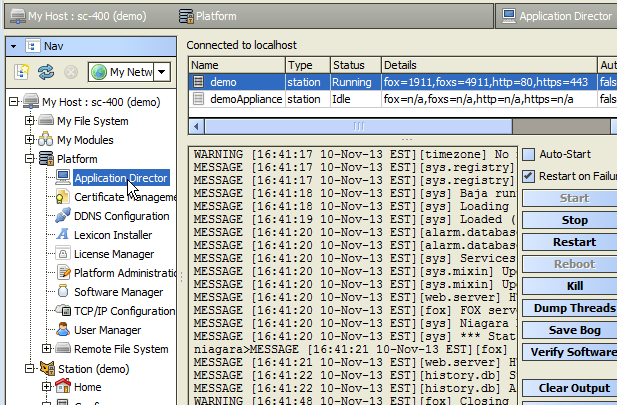
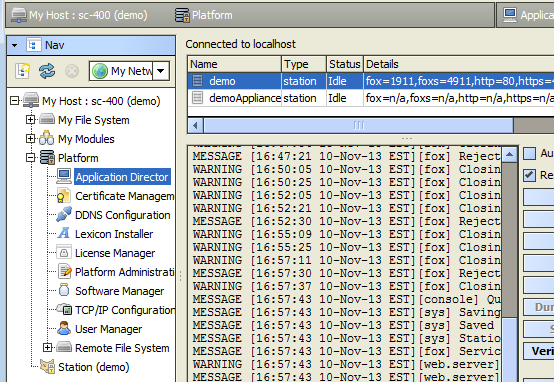
In Workbench, expand your host’s Platform in the Nav tree.
Double-click the Application Director.
-
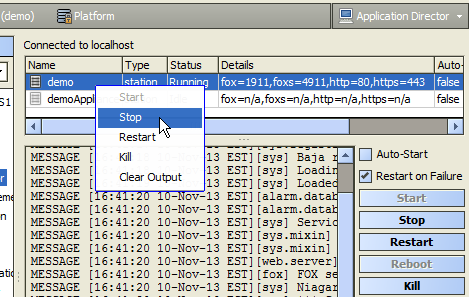
Right-click the demo station.
From the popup menu, click (or, with the demo station selected, click the right-side button).
-
A confirmation dialog appears. Click .
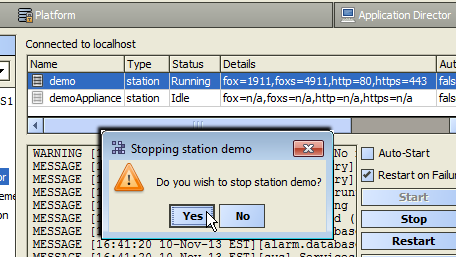
The demo station status changes to “Stopping,” then to “Idle.” The station is now stopped.
 If you had the demo station opened in Workbench, notice that it is now “ghosted” and collapsed. You cannot open (connect)
to the demo again until you first start the demo station, using this Platform view (Application Director).
If you had the demo station opened in Workbench, notice that it is now “ghosted” and collapsed. You cannot open (connect)
to the demo again until you first start the demo station, using this Platform view (Application Director).
-
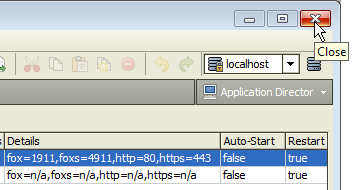
If finished looking at NiagaraAX, you can simply click the Windows “Close” control (X in upper right) to exit as shown, or to exit from the menu bar, select ->.
When starting Workbench the next time, your host PC will be collapsed again in the Nav tree. To restart the demo, expand your host in the tree and double-click the ghosted Platform, then continue from Step 3 in Get the Demo Up and Running.